
Official statement
Other statements from this video 11 ▾
- □ L'attribut HTML loading=lazy suffit-il vraiment pour éviter les problèmes d'indexation ?
- □ Le lazy loading tue-t-il vraiment votre LCP ?
- □ Votre bibliothèque JavaScript custom sabote-t-elle l'indexation de vos images par Google ?
- □ Comment vérifier que votre lazy loading n'empêche pas Google de voir vos images ?
- □ Le lazy loading natif de WordPress améliore-t-il vraiment votre SEO ?
- □ Le lazy loading améliore-t-il vraiment votre SEO ou seulement vos performances ?
- □ Votre LCP est un bloc de texte chargé en JavaScript : comment Google le mesure-t-il vraiment ?
- □ Le lazy loading natif HTML suffit-il vraiment pour optimiser le crawl de vos pages ?
- □ Le lazy loading sabote-t-il l'indexation de vos images dans Google ?
- □ Les images en CSS sont-elles vraiment invisibles pour le référencement Google ?
- □ Infinite scroll et lazy loading : pourquoi Google insiste-t-il sur leur différence fondamentale ?
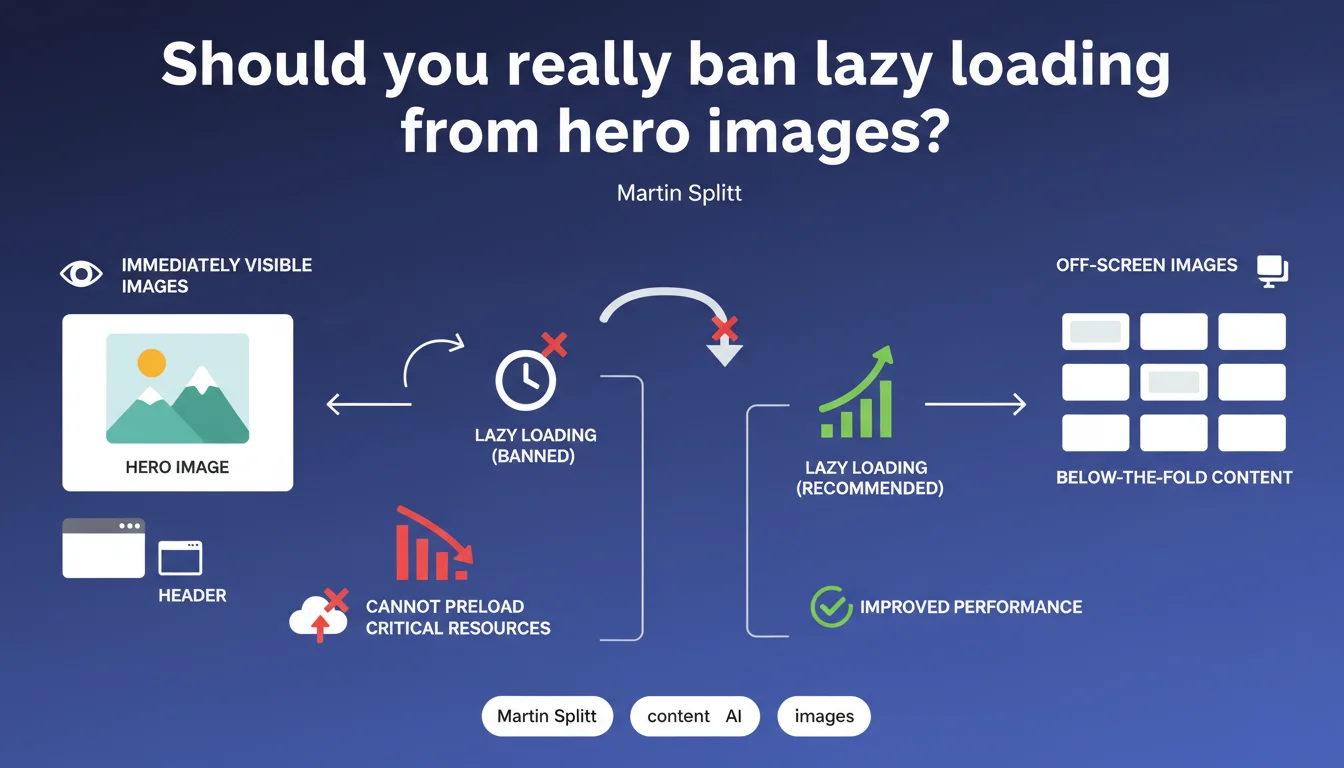
Google formally advises against applying lazy loading to images that are immediately visible (hero, header). This practice delays loading and degrades LCP because the browser cannot preload these critical resources. Bottom line: lazy loading yes, but not on above-the-fold elements.
What you need to understand
Why does lazy loading cause problems with hero images?
Lazy loading works by delaying image downloads until they approach the viewport. It's excellent for saving bandwidth and speeding up initial page load — except when applied to critical images.
A hero or header image is by definition immediately visible. If it's lazy loaded, the browser waits for HTML parsing, JavaScript execution, and then triggers the download. Result: an unnecessary delay that explodes the Largest Contentful Paint (LCP), one of Google's most scrutinized Core Web Vitals metrics.
What actually happens at the browser level?
When an image uses standard loading (without loading="lazy"), the browser's preload scanner detects it during HTML parsing and launches the download in parallel. It's fast, efficient.
With loading="lazy", this mechanism is bypassed. The browser waits for the image to enter a trigger zone (viewport plus margin). For an image already visible on load, this delay makes no sense — it only artificially slows down the display of main content.
Which images are affected by this rule?
Any image visible above the fold — the portion displayed without scrolling. This includes hero images, header banners, large logos, and prominent product visuals on product pages.
If the image is the largest visible element on load (which is often the case with heroes), it automatically becomes a candidate for LCP. Using lazy loading here is self-sabotage.
- Above the fold = never lazy load, period.
- The LCP measures the rendering time of the largest visible element — often a hero image.
- The preload scanner detects critical resources during HTML parsing, unless they're lazy loaded.
- Lazy loading on critical images = artificial delay = poor user experience.
- Google recommends reserving lazy loading for below-the-fold images only.
SEO Expert opinion
Is this recommendation aligned with real-world observations?
Absolutely. We regularly see sites with catastrophic LCP simply because a WordPress plugin or global script applied loading="lazy" to every image indiscriminately. LCP jumps from 1.5s to 3.5s just because of that.
Tools like PageSpeed Insights and Lighthouse even flag this explicitly: "Avoid lazy-loading images that are in the viewport". It's an easy quick win — yet neglected by many sites, including mid-sized e-commerce stores.
Are there cases where this rule deserves nuance?
Let's be honest: not really. Some developers argue that conditional lazy loading (based on server-side viewport detection) could work. But it's complex, fragile, and offers nothing over standard loading.
However, you can — and should — use <link rel="preload"> to force the browser to prioritize the hero image if it's heavy or remote (CDN). That's a real lever.
priority={true} or loading="eager".What's the most common mistake around this issue?
Applying lazy loading globally via a plugin or CSS/JS directive, without any targeting logic. You lazy load everything, including what should never be.
Second classic mistake: testing on desktop with fast connection, noticing nothing, and never checking mobile behavior on 3G. That's where the LCP delta explodes and impact becomes visible in Core Web Vitals reported by CrUX (Chrome User Experience Report).
Practical impact and recommendations
How to identify images that should never be lazy loaded?
Run a PageSpeed Insights or WebPageTest audit on your key pages (home, product sheets, landing pages). Look at the element flagged as LCP — it's often an image.
If that image has the loading="lazy" attribute, it's a bug. It must switch to loading="eager" (or no attribute, it's equivalent). Bonus: add a <link rel="preload" as="image" href="..."> in the <head> to force prioritization.
What concrete actions should you take immediately?
First, audit your site to find all above-the-fold images currently lazy loaded. Inspect the source code, use DevTools (Network tab), check loading attributes.
Next, change the behavior: disable lazy loading on these specific images. If you use a CMS (WordPress, Shopify, etc.), check theme and optimization plugin settings. Many have an option "exclude the first X images" — use it.
- Identify the LCP element via PageSpeed Insights ("Diagnostics" section).
- Check if that element has
loading="lazy"in the source code. - Remove the
loading="lazy"attribute or replace it withloading="eager". - Add a
<link rel="preload">for the hero image if it's heavy or remote. - Test LCP before/after on mobile with 3G throttling (WebPageTest).
- Configure plugins/themes to automatically exclude above-the-fold images from lazy loading.
- Monitor Core Web Vitals in Search Console to validate improvement over 28 days.
What if my site uses a modern JS framework?
Frameworks like Next.js, Nuxt, Gatsby have their own Image components with lazy loading enabled by default. You must explicitly disable this for critical images.
On Next.js: <Image priority />. On Nuxt: loading="eager". Check your framework's docs — this option always exists, but isn't highlighted.
🎥 From the same video 11
Other SEO insights extracted from this same Google Search Central video · published on 21/08/2025
🎥 Watch the full video on YouTube →
💬 Comments (0)
Be the first to comment.