
Official statement
Other statements from this video 11 ▾
- □ Pourquoi la limite des 1 000 lignes dans Search Console pose-t-elle un vrai problème d'analyse ?
- □ Pourquoi la limite de 50 000 lignes dans Search Console peut-elle fausser vos analyses SEO ?
- □ Comment exploiter toutes vos données Search Console sans limite de lignes grâce à BigQuery ?
- □ L'export BigQuery de Search Console donne-t-il vraiment accès à TOUTES les données ?
- □ L'export en masse de la Search Console est-il réservé aux très gros sites ?
- □ Quels droits d'accès faut-il pour exporter vos données Search Console vers BigQuery ?
- □ Pourquoi l'emplacement BigQuery de Search Console est-il définitivement figé ?
- □ Pourquoi Google notifie-t-il tous les propriétaires lors de la configuration d'un export Search Console ?
- □ Les exports BigQuery Search Console s'accumulent-ils vraiment sans limite ?
- □ Comment arrêter ou relancer l'export en masse des données Search Console ?
- □ Comment Google gère-t-il réellement les erreurs d'export dans Search Console ?
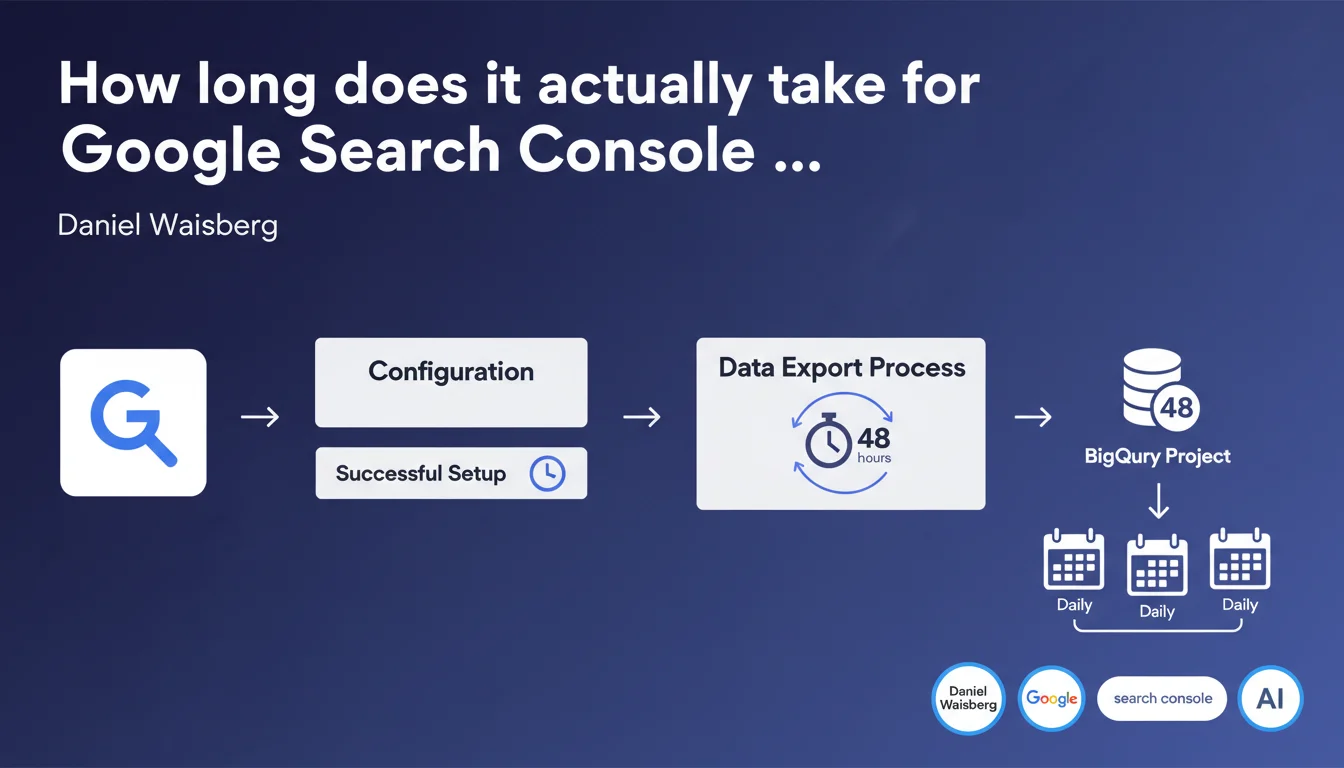
Once configuration is complete, Google Search Console begins bulk export to BigQuery within a maximum of 48 hours. Subsequent exports then arrive daily. This is an unavoidable technical delay that must be anticipated in any SEO data analysis project.
What you need to understand
Why does this 48-hour delay exist?
Google doesn't trigger the export immediately after configuration. The system must verify permissions, initialize connections between Search Console and BigQuery, and prepare the first batch of historical data.
This 48-hour delay represents the maximum processing time. In practice, the export often starts sooner — but Google doesn't guarantee anything more specific.
What exactly is bulk export?
Bulk export transfers your complete Search Console data history to your BigQuery project. Unlike the Search Console API, which is limited to 16 months of data with request caps, BigQuery retrieves everything: clicks, impressions, CTR, and average positions by URL and query.
Once the initial export is complete, new data arrives daily. You build a usable SEO database without time limits or API constraints.
Which data is covered by this export?
The export covers performance data: queries, pages, countries, devices. You get the same metrics as in the Search Console interface, but structured as exploitable SQL tables.
- Maximum startup delay: 48 hours after configuration
- Frequency afterward: automatic daily exports
- Exported data: complete history with no 16-month limit
- No action required once configuration is validated
SEO Expert opinion
Is this 48-hour delay truly unavoidable?
In practice, the export often starts within 12 to 24 hours. But Google covers itself with a 48-hour maximum. If you configure on a Friday evening, don't be surprised if the export doesn't start until Monday morning.
The real trap? Some people think the export is instantaneous. Result: they configure BigQuery the day before a client presentation and have no usable data the next day. [To be verified]: no documentation specifies whether this delay varies based on site size or Search Console account age.
Should you verify that the export has actually started?
Yes — and this is often where things go wrong. Google doesn't explicitly notify you when the export begins. You must manually check BigQuery to confirm that the tables appear and fill with data.
Concretely? Open your BigQuery project, find the dataset linked to Search Console, and verify the presence of tables. If nothing appears after 48 hours, the issue likely stems from misconfigured IAM permissions.
Are daily exports reliable?
In most cases, yes. But interruptions can occur — Search Console ownership changes, BigQuery permission modifications, or exceeded quotas on your GCP project.
Let's be honest: Google doesn't publicly communicate the reliability rate of these exports. If you're building a critical dashboard for a client, plan for weekly verification that data continues to flow in.
Practical impact and recommendations
What should you do before launching the export?
Before even clicking "Configure export," ensure your BigQuery project is operational with the correct permissions. Search Console needs write access to your target dataset.
Create a dedicated dataset in BigQuery — not in an existing dataset mixed with other data. Make tracking easier by naming it clearly (for example: "searchconsole_yoursite_com").
How do you verify that the export is working correctly?
After configuration, wait 48 hours then log into BigQuery. Verify that the tables appear in your dataset: searchdata_url_impression, searchdata_site_impression.
Run a simple SQL query to count rows. If you get zero results after 48 hours, the issue likely stems from permissions or initial configuration.
- Create a GCP project with BigQuery enabled
- Configure a dedicated dataset with write permissions for Search Console
- Launch the export from the Search Console interface (Settings > Bulk Export)
- Wait up to 48 hours before panicking
- Verify that tables appear in BigQuery
- Test a basic SQL query to validate data presence
- Set up an alert if daily exports stop
❓ Frequently Asked Questions
Puis-je forcer le démarrage de l'export avant 48 heures ?
Que se passe-t-il si je modifie la configuration pendant ces 48 heures ?
Les données exportées incluent-elles l'historique complet du site ?
Combien coûte le stockage BigQuery des données Search Console ?
Puis-je exporter plusieurs propriétés Search Console vers le même projet BigQuery ?
🎥 From the same video 11
Other SEO insights extracted from this same Google Search Central video · published on 18/05/2023
🎥 Watch the full video on YouTube →
💬 Comments (0)
Be the first to comment.