
Official statement
Other statements from this video 11 ▾
- □ Pourquoi la limite des 1 000 lignes dans Search Console pose-t-elle un vrai problème d'analyse ?
- □ Pourquoi la limite de 50 000 lignes dans Search Console peut-elle fausser vos analyses SEO ?
- □ Comment exploiter toutes vos données Search Console sans limite de lignes grâce à BigQuery ?
- □ L'export BigQuery de Search Console donne-t-il vraiment accès à TOUTES les données ?
- □ L'export en masse de la Search Console est-il réservé aux très gros sites ?
- □ Combien de temps faut-il attendre avant que l'export Search Console vers BigQuery démarre réellement ?
- □ Pourquoi l'emplacement BigQuery de Search Console est-il définitivement figé ?
- □ Pourquoi Google notifie-t-il tous les propriétaires lors de la configuration d'un export Search Console ?
- □ Les exports BigQuery Search Console s'accumulent-ils vraiment sans limite ?
- □ Comment arrêter ou relancer l'export en masse des données Search Console ?
- □ Comment Google gère-t-il réellement les erreurs d'export dans Search Console ?
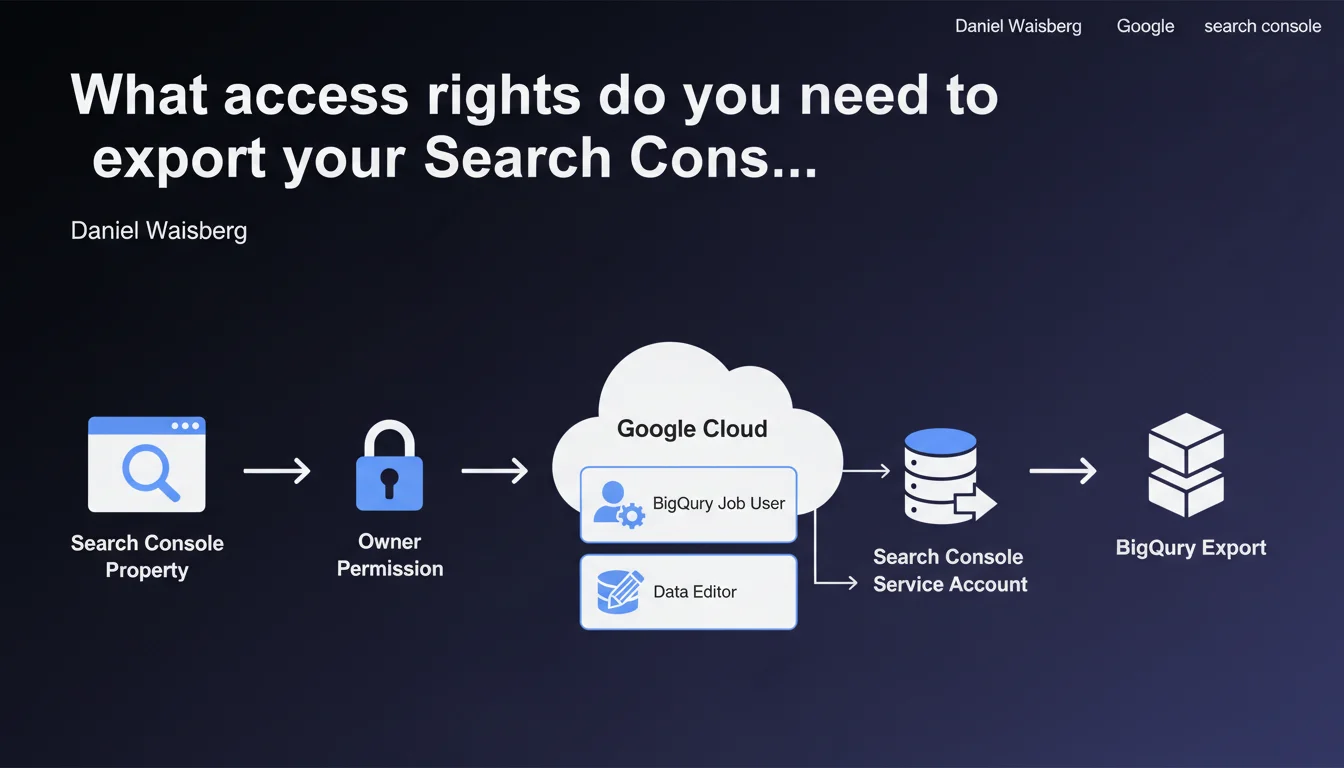
To launch a bulk Search Console export to BigQuery, you must be the owner of the GSC property. Additionally, you must grant the BigQuery Job User and Data Editor roles to the Google Search Console service account in your Google Cloud project. Without these precise permissions, the export will fail.
What you need to understand
Why does Google impose these permission restrictions?
Bulk exporting from Search Console to BigQuery is not just a simple CSV download. It's an automated pipeline that writes directly to your Google Cloud infrastructure. Google therefore requires a high level of control: only a property owner can authorize this pipeline.
The BigQuery Job User and Data Editor roles are not trivial. The first allows the service account to launch jobs (queries, exports), the second gives it the right to write to your datasets. Without these two permissions, the Search Console service account has no way to feed your data warehouse.
What exactly is a Search Console service account?
A service account is a machine identity — not a human user. Google Search Console uses it to communicate with BigQuery on your behalf. Concretely, it's an email address that looks like service-xxxx@gcp-sa-searchconsole.iam.gserviceaccount.com.
This service account must be explicitly authorized in your Google Cloud project. If you skip this step, the export appears to configure, but fails silently when it runs. And you waste time figuring out why your data isn't arriving.
What are the exact steps to grant these permissions?
From the Google Cloud Console, you must add this service account as a member of your project. Then you assign it the two roles: BigQuery Job User (so it can submit jobs) and BigQuery Data Editor (so it can write to your tables).
Google leaves no room for flexibility: a simple "Viewer" is not enough, a Cloud project "Owner" is not required, but these two specific roles are non-negotiable.
- Only a Search Console owner can initiate the bulk export — not a user with full access or a restricted user.
- The Search Console service account must have the BigQuery Job User and BigQuery Data Editor roles in your Google Cloud project.
- Without these permissions, the export configures but writes no data — silent failure guaranteed.
- These restrictions are designed to protect your Cloud infrastructure against unauthorized writes.
SEO Expert opinion
Is this statement consistent with Google Cloud security logic?
Yes, absolutely. Google applies the principle of least privilege here: each service receives only the permissions strictly necessary. Requiring that only the Search Console owner can launch the export prevents a random contributor from dumping your data into an unsecured Cloud project.
The two imposed BigQuery roles are also well calibrated. Job User without Data Editor is useless (impossible to write). Data Editor without Job User, same thing (impossible to launch the process). Google leaves no ambiguity, and that's rather healthy to avoid configuration errors.
What pitfalls should you anticipate in practice?
The first pitfall is believing that "Google Cloud project owner" is enough. [To verify] in some cases, a Cloud owner who is not a Search Console owner cannot launch the export. The permission hierarchy is strict and compartmentalized between the two products.
Second pitfall: failing to identify the correct service account. If you have multiple Cloud projects or multiple Search Console properties, you risk granting permissions to the wrong service account. Google doesn't always warn you explicitly — the export just fails silently.
Is this approach really necessary for all types of exports?
No. If you stick to manual exports through the Search Console interface (CSV, Google Sheets), no BigQuery permission is required. These restrictions only concern the automated bulk export to BigQuery, which requires infrastructure integration.
Let's be honest: most sites don't need this export. But once you exceed 1,000 rows of data per day, or when you want to cross Search Console with other sources (Analytics, CRM), BigQuery becomes essential. And then, these permissions become your key.
Practical impact and recommendations
What do you need to do concretely to configure the export?
First step: log into Google Search Console with an account that is the owner of the property. Not "full access user," not "restricted user" — owner. Then launch the bulk export configuration to BigQuery from the GSC interface.
Second step: identify the Search Console service account. Google provides you with the service account email address when you configure the export. Note it precisely.
Third step: go to the Google Cloud console, IAM section, and add this service account as a member of your project. Assign it the BigQuery Job User and BigQuery Data Editor roles. Save, wait a few minutes for permissions to propagate, then test.
What errors should you absolutely avoid?
Don't confuse "Search Console owner" with "site administrator." The first is a GSC role, the second could be a CMS or hosting role. Only the GSC role counts here.
Don't grant overly broad BigQuery permissions "just in case." Granting BigQuery Admin to the service account is an unnecessary security risk. Stick with Job User + Data Editor, that's it.
And don't launch the export without verifying that the BigQuery dataset already exists and is in the right region. Google Cloud refuses to write to a non-existent or incorrectly located dataset.
How do you verify that everything is properly configured?
Once the export is launched, wait 24 to 48 hours and verify that tables appear in your BigQuery dataset. If nothing shows up, go back to Google Cloud IAM and check that the service account has both required roles.
You can also check the BigQuery logs ("Job history" section) to see if write attempts failed with a permissions error. It's often more verbose than the Search Console interface.
- Verify that you are indeed an owner of the Search Console property, not just a user.
- Note the email address of the Search Console service account provided during configuration.
- Access Google Cloud Console > IAM and add this service account with the BigQuery Job User and BigQuery Data Editor roles.
- Create the target BigQuery dataset before launching the export (region consistent with your project).
- Wait 24-48 hours then verify the arrival of data in BigQuery.
- Consult BigQuery logs if there is silent failure to diagnose permission errors.
❓ Frequently Asked Questions
Peut-on lancer un export en masse Search Console sans être propriétaire de la propriété ?
Quels rôles BigQuery faut-il accorder au compte de service Search Console ?
Que se passe-t-il si on oublie d'accorder ces permissions dans Google Cloud ?
Faut-il reconfigurer les permissions pour chaque propriété Search Console ?
Peut-on accorder ces permissions après avoir lancé l'export ?
🎥 From the same video 11
Other SEO insights extracted from this same Google Search Central video · published on 18/05/2023
🎥 Watch the full video on YouTube →
💬 Comments (0)
Be the first to comment.