
Official statement
Other statements from this video 11 ▾
- □ Can you really rely on service workers for SEO success?
- □ Can Googlebot actually index a website that relies on service workers to display its content?
- □ Does Googlebot really ignore the service workers on your site?
- □ How can you use Search Console to uncover hidden indexation problems caused by service workers?
- □ What are Google's live testing tools really showing you about your site's rendering issues?
- □ Can the JavaScript console really uncover critical rendering issues that hurt your SEO?
- □ Is developer collaboration really the breakthrough you need to unlock indexation problems?
- □ Should you really inject console.log statements to diagnose Googlebot rendering failures?
- □ How can service workers accidentally hide your entire content from Googlebot?
- □ Should you really verify rendered HTML in Search Console to diagnose your indexation issues?
- □ Your page is indexed but invisible: is it a technical issue or simply outranked by competitors?
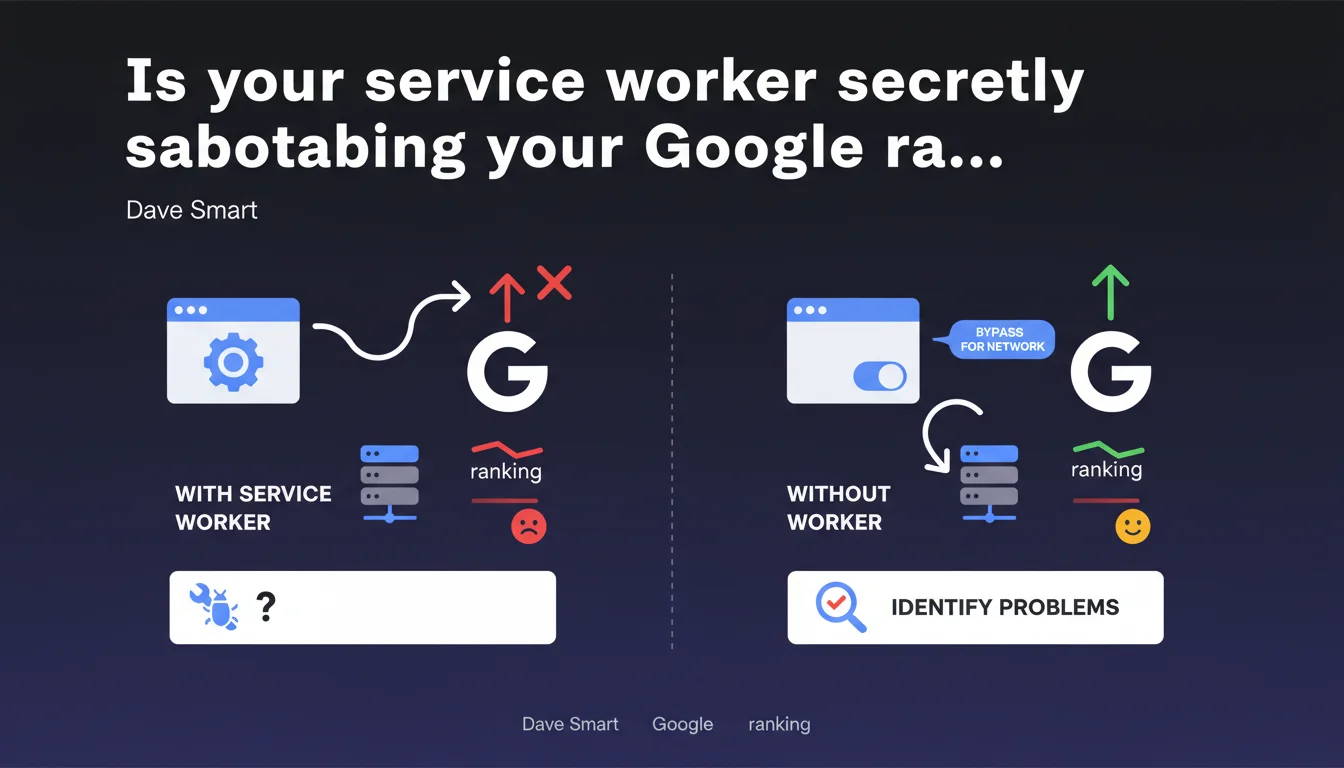
Google explains how to use the 'Bypass for Network' option in DevTools to temporarily disable a service worker and diagnose whether it's causing indexation or crawl problems. This technical manipulation allows you to compare your site's behavior with and without the service worker active, which is crucial for isolating bugs related to caching or network request interception.
What you need to understand
Why should you disable a service worker during SEO diagnosis?
Service workers intercept network requests and manage client-side caching. The problem: if they're misconfigured, they can serve stale content to Googlebot or block access to critical resources needed for rendering.
Temporarily disabling the service worker lets you verify whether the issue stems from it — and not from another technical layer. If your site works correctly without the service worker but breaks with it, you've found your culprit.
Where is the 'Bypass for Network' option in Chrome DevTools?
Open DevTools (F12 or Cmd+Option+I on Mac), then navigate to the Application tab. In the left sidebar, click on Service Workers. You'll see a list of service workers active on the page.
Check the 'Bypass for network' checkbox. As long as this box is checked, the browser ignores the service worker and loads resources directly from the network — exactly as if the service worker didn't exist.
What errors can a misconfigured service worker cause for Googlebot?
A poorly configured service worker can serve stale cached pages, prevent access to certain URLs, or block the loading of essential JavaScript/CSS resources needed for rendering. Google needs to access the fresh version of content to index properly.
If Googlebot encounters phantom 404 errors, blank pages in Search Console, or discrepancies between mobile and desktop rendering, the service worker could be to blame. Temporarily disabling it allows you to quickly confirm or rule out this hypothesis.
- Bypass for Network temporarily disables the service worker in DevTools (Application tab)
- This technique lets you compare your site's behavior with and without the service worker active
- Poorly configured service workers can serve outdated content or block access to critical resources
- If your site works without the service worker but fails with it, you've identified the problem source
- This diagnostic technique applies equally to crawling and page rendering
SEO Expert opinion
Is this diagnostic method sufficient to replicate Googlebot's behavior?
Disabling the service worker in Chrome DevTools is a good first step, but it's not exactly what Googlebot sees. Google's crawler executes JavaScript in a controlled environment that may handle service workers differently than a standard browser.
To go deeper, use the URL Inspection Tool in Search Console and compare the live rendering with your manual test. If the two differ, Googlebot is encountering an obstacle you haven't reproduced locally. [To be verified]: Google has never explicitly clarified whether Googlebot respects all service worker caching strategies or applies specific rules.
In what cases is this technique insufficient to identify the problem?
If your service worker relies on complex caching strategies (cache-first, network-first with fallback…), completely disabling it won't tell you which part of the logic is problematic. You'll know it's the culprit, but not why.
In that case, you need to analyze the service worker code line by line, inspect logs in the console, and test different configurations. Chrome's debugging tools also let you simulate network conditions (offline, slow 3G…) to see how the service worker reacts. Let's be honest: it's time-consuming and technical.
Is this recommendation consistent with practices observed in the field?
Absolutely. Service workers are a frequent source of SEO bugs on Progressive Web Apps (PWAs) and sites using modern JavaScript frameworks. The classic problem: a developer sets up aggressive caching to boost performance but forgets to version resources or invalidate the cache during deployments.
Result: Googlebot crawls a new page, but the service worker serves an old cached version. Indexation doesn't reflect actual content. The technique suggested by Dave Smart is exactly what SEO technicians use to isolate this type of bug.
Practical impact and recommendations
What concrete steps should you take to diagnose a service worker issue?
Start by opening Chrome DevTools (F12), go to Application > Service Workers. Check 'Bypass for network' and reload the page. Compare the rendering with and without the service worker active. If the page displays correctly without the service worker but shows errors with it, you've isolated the problem.
Next, check Search Console to see if Googlebot encounters the same errors. Use the URL Inspection Tool to see exactly what Google crawled and rendered. If the screenshots show a blank or incomplete page, the service worker is likely to blame.
What errors should you avoid when configuring a service worker?
First mistake: caching content URLs without a versioning strategy. If you update your site and the service worker still serves the old version, Googlebot indexes outdated content. Second mistake: blocking access to critical resources (CSS, JS, images) by applying a cache-only strategy without a network fallback.
Third common mistake: failing to test the service worker's behavior in incognito mode or after clearing the cache. The service worker might work for you (returning visitor with warm cache) but fail for a new visitor or Googlebot.
How do you verify that the service worker isn't blocking Googlebot?
Use the Rich Results Test or URL Inspection in Search Console to request a live rendering. Compare the source HTML with what Googlebot actually rendered. If elements are missing or the page is blank, inspect JavaScript errors in the logs.
You can also review your server logs to verify that Googlebot successfully accesses resources (CSS, JS, images). If certain requests never appear in the logs when they should, the service worker is likely intercepting them and serving them from local cache — preventing Google from crawling them.
- Open Chrome DevTools → Application → Service Workers
- Check 'Bypass for network' and reload the page to compare behavior
- Verify in Search Console whether Googlebot encounters the same errors
- Use the URL Inspection Tool to see Google's exact rendering
- Test in incognito mode to replicate a new visitor's experience
- Review server logs to confirm Googlebot accesses critical resources
- If the problem persists after disabling the service worker, investigate elsewhere (server errors, JavaScript, redirects…)
❓ Frequently Asked Questions
Est-ce que désactiver le service worker via DevTools affecte les autres utilisateurs du site ?
Googlebot respecte-t-il toujours les service workers ou les ignore-t-il dans certains cas ?
Dois-je complètement supprimer le service worker si je détecte un problème ?
Comment savoir si mon service worker bloque des ressources critiques pour le rendu ?
Est-ce que le mode navigation incognito désactive automatiquement le service worker ?
🎥 From the same video 11
Other SEO insights extracted from this same Google Search Central video · published on 01/11/2022
🎥 Watch the full video on YouTube →
💬 Comments (0)
Be the first to comment.