
Official statement
Other statements from this video 8 ▾
- □ Does Google really index rendered HTML instead of the raw source code?
- □ Does the URL inspection tool really show you how Google discovers your pages?
- □ Does Google really respect your canonical tag, or does it decide on its own?
- □ How can you effectively verify X-Robots directives hidden in your HTTP headers?
- □ Are JavaScript resources blocked by robots.txt really killing your indexation?
- □ Should you really worry about resource errors in Google Search Console?
- □ Are JavaScript console messages becoming a critical SEO signal you need to monitor?
- □ Why does Google Search Console's live URL test deliver different results every time you run it?
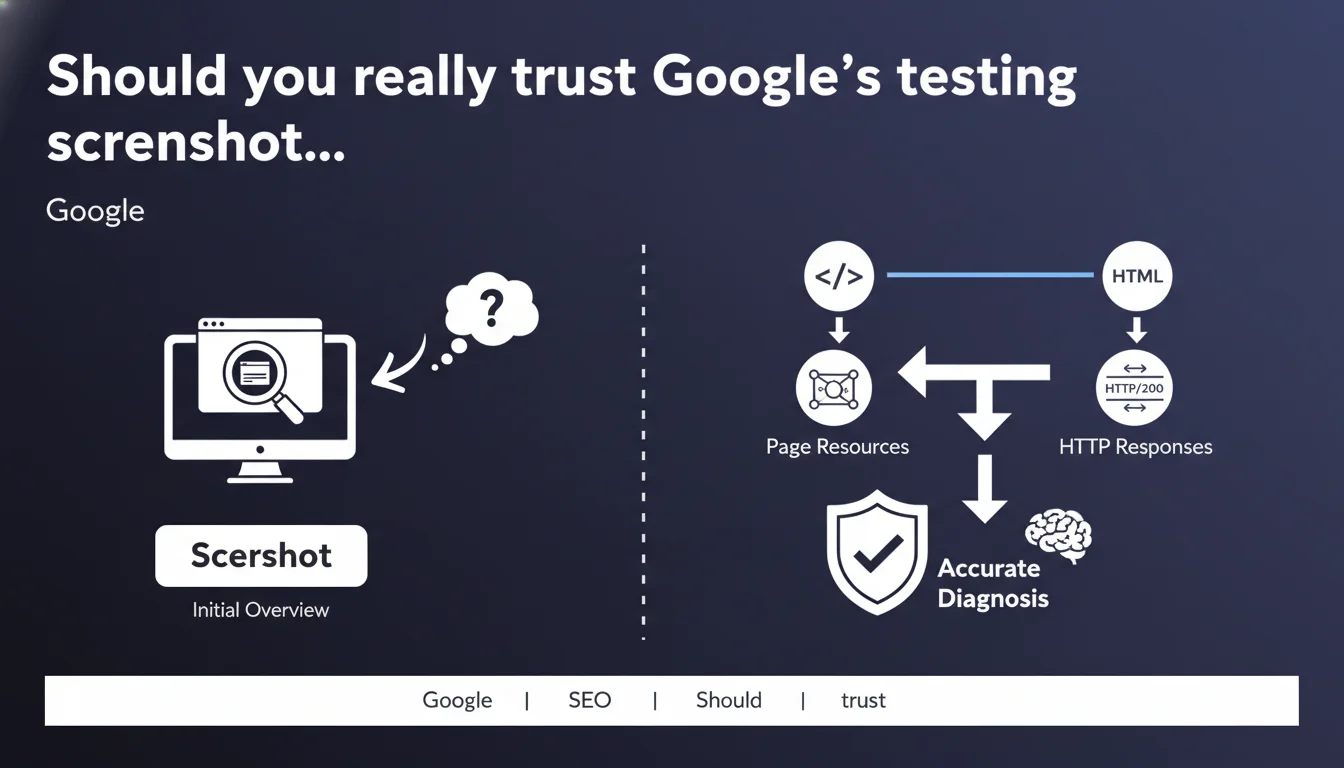
Google recommends focusing on HTML, page resources, and HTTP responses rather than screenshots provided by live testing tools. Screenshots are only a superficial visual preview — real technical diagnosis comes through analyzing source code and resources served to the bot.
What you need to understand
Why does Google discourage relying on screenshots?
The screenshots generated by tools like the Search Console URL inspector or mobile-friendly test give a quick visual overview. But they remain a simplified and sometimes misleading representation of what Googlebot actually sees.
Visual rendering does not always reflect underlying technical issues: blocked resources, silent JavaScript errors, deferred-loaded content that doesn't appear in the initial DOM. Google insists — serious diagnosis is done in the code, not in the image.
What really matters for diagnosing crawl or indexation issues?
Three technical elements take priority: the raw HTML served to the bot, the page resources (CSS, JS, images, fonts), and the HTTP responses (status codes, redirects, headers).
The real problems hide in these layers: misconfigured canonical tags, critical content loaded only in JavaScript, resources blocked by robots.txt, redirect chains, catastrophic server response times. Screenshots reveal none of this.
When does the screenshot remain useful despite everything?
Let's be honest — it has its use for a first visual diagnosis: detecting a blank page, obviously broken content, a consent banner blocking everything, obvious layout shifts.
But it's a starting point, not a conclusion. If the screenshot looks normal while the page isn't indexing, that's precisely the signal to dig into the HTML and resources. The opposite is true as well: an ugly screenshot isn't necessarily an SEO problem if the code is clean.
- Screenshots are a superficial visual preview, not a reliable technical diagnostic tool
- Real diagnosis comes through analyzing raw HTML, resources, and HTTP codes
- Googlebot doesn't index an image of your page — it indexes the source code and rendered content
- Testing tools provide structured data (source code, server responses) far more useful than a screenshot
SEO Expert opinion
Is this recommendation consistent with practices observed in the field?
Absolutely. Seasoned SEO professionals have known this for a long time — the screenshot is a gadget for clients who want to "see what it looks like," not a debugging tool. In the field, 90% of indexation problems are diagnosed in source code and server logs, not in visual rendering.
That said, Google is stating the obvious here. Who in our industry bases their diagnosis solely on a screenshot? The real question is: why do these tools put screenshots so front and center if they're so unreliable? User interface, probably.
What nuances should be added to this statement?
Google remains vague on one point: what is the actual faithfulness of the screenshot compared to the bot's final rendering? In some cases, the screenshot shows correct content while the HTML accessible to the bot is empty (asynchronous JavaScript loading, for example). In others, the reverse.
[To verify]: Google doesn't specify whether the screenshot comes from the same rendering environment used for indexing. If the two diverge, that's a real consistency problem in the tool — and it deserves explicit documentation.
In which cases does this rule not apply?
Concretely? Never. There is no scenario where the screenshot alone is sufficient for serious SEO diagnosis. Even to spot an obvious visual problem, you must confirm in the code that it's not a temporary rendering artifact.
However, for a client report or business presentation, the screenshot has pedagogical value. It visually illustrates a complex problem. But it never replaces technical analysis.
Practical impact and recommendations
What should you actually do during technical diagnosis?
First step: open the testing tool (URL inspector, mobile-friendly test) and ignore the screenshot at first. Go directly to the "HTML" or "Source Code" tab and analyze what Googlebot actually receives.
Verify that your main content appears in the initial HTML, that critical tags (title, meta description, canonical, hreflang, structured data) are present and correct. Inspect loaded resources: CSS blocked? JavaScript 404? Fonts inaccessible?
Next, look at the HTTP responses: 200 codes, clean redirects, no chains of 301s, acceptable server response time. Only after this analysis should you glance at the screenshot to see if visual rendering matches — and if it doesn't, you already know where to look.
What mistakes should you absolutely avoid?
Never settle for the screenshot to conclude a page is "OK." This is the classic mistake: the client sees a nicely rendered page, everything seems normal, but the bot only sees an empty HTML skeleton with content loaded deferred.
Another trap: assuming that if the screenshot is broken, it's definitely a serious SEO problem. Sometimes it's just a temporary timeout, a slow third-party resource, a display bug that doesn't impact indexing. Always check the source code before panicking.
- Open Google testing tools and go directly to the "HTML" or "Source Code" tab
- Verify that main content and critical tags are present in the initial HTML
- Inspect loaded resources (CSS, JS, images) and identify blockages or 404 errors
- Analyze HTTP responses: status codes, redirects, server response time
- Compare rendered HTML with screenshot to detect JavaScript rendering gaps
- Never conclude a diagnosis based solely on the visual screenshot
- Document gaps between visual rendering and source code to identify JS issues
How do you verify your site complies with this diagnostic logic?
Test a dozen of your strategic pages in the URL inspector. For each one, ask yourself: if I only had the source code (no screenshot), would I see my main content? Are all my tags there?
If the answer is no — if your content appears only in the screenshot but not in the raw HTML — you have a JavaScript rendering problem to fix as a priority. This is the most frequent scenario on modern sites (React, Vue, Angular).
Remember this: Google gives you access to precise technical data (HTML, resources, HTTP responses). Use it. The screenshot is just a visual bonus, not a diagnostic tool. Serious SEO auditing relies on code analysis, not on an image.
If these verifications seem time-consuming or complex to automate at scale, especially on advanced JavaScript architectures, support from an SEO-specialized agency can save you valuable time and prevent costly indexing mistakes.
❓ Frequently Asked Questions
Pourquoi la capture d'écran de l'inspecteur d'URL ne correspond-elle pas toujours à ce que je vois dans mon navigateur ?
Si la capture d'écran montre ma page correctement mais que Google ne l'indexe pas, où chercher le problème ?
Dois-je corriger tous les problèmes de rendu visuel que je vois dans la capture d'écran ?
Quels éléments du code source dois-je vérifier en priorité dans l'inspecteur d'URL ?
Comment savoir si Googlebot voit bien mon contenu chargé en JavaScript ?
🎥 From the same video 8
Other SEO insights extracted from this same Google Search Central video · published on 02/08/2023
🎥 Watch the full video on YouTube →
💬 Comments (0)
Be the first to comment.