
Official statement
Other statements from this video 7 ▾
- □ Googlebot ignore-t-il vraiment le scroll et les interactions utilisateur ?
- □ Les DevTools suffisent-ils vraiment pour déboguer vos problèmes SEO techniques ?
- □ Pourquoi les en-têtes de réponse HTTP sont-ils cruciaux pour votre référencement ?
- □ Pourquoi usurper le user agent de Googlebot dans votre navigateur ne sert à rien ?
- □ Pourquoi le diagramme en cascade de vos ressources révèle-t-il vos vrais problèmes de performance ?
- □ Pourquoi Google vérifie-t-il la présence du contenu dans le DOM plutôt que dans le HTML brut ?
- □ Faut-il vraiment bannir le lazy loading et le scroll infini pour être indexé par Google ?
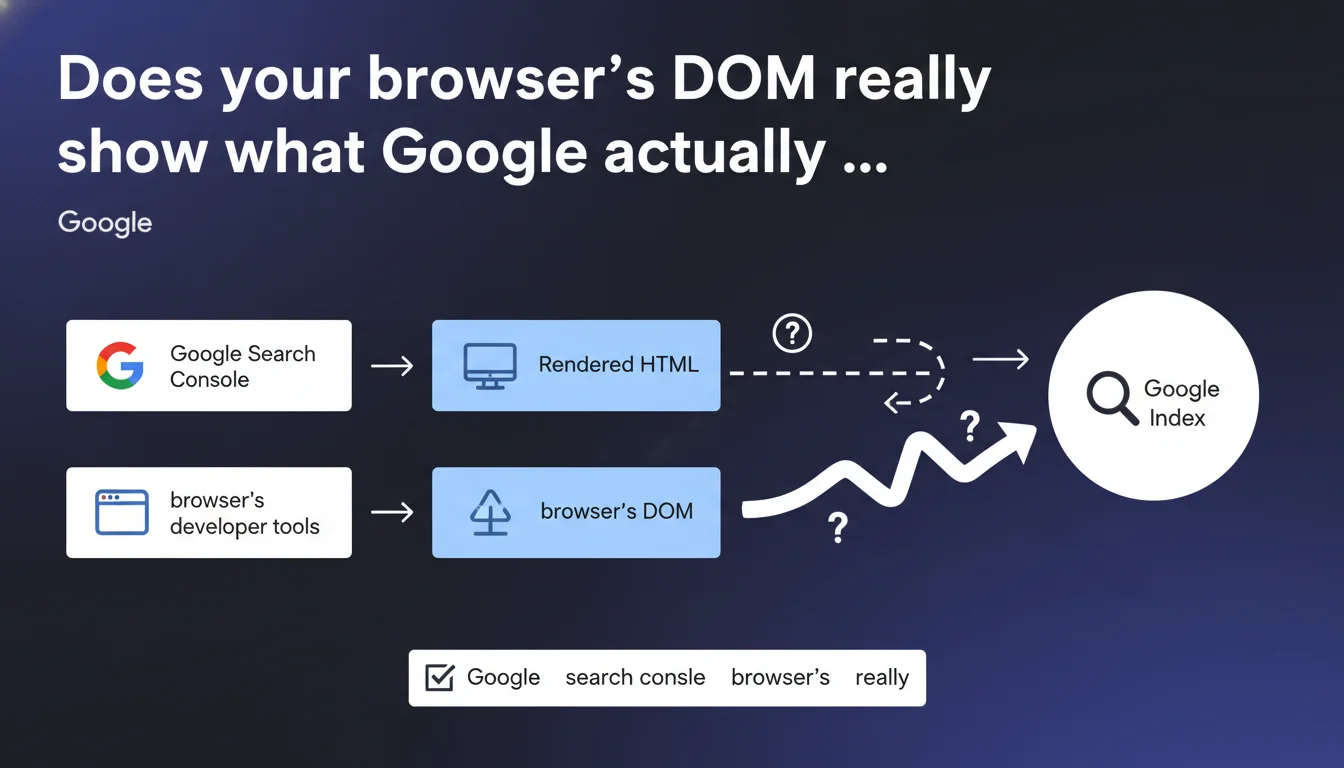
Google confirms that the DOM visible in your browser's developer tools (Chrome DevTools, Firefox Inspector, etc.) corresponds to the rendered HTML displayed in Search Console. In practical terms, what you inspect in your browser is the best approximation of what Googlebot sees after executing JavaScript. This clarity finally resolves the confusion between source HTML and rendered HTML for indexation purposes.
What you need to understand
Why does Google clarify this DOM/rendered HTML equivalence?
Since Googlebot adopted JavaScript rendering, the distinction between initial source code and final displayed content has confused many professionals. The source HTML (what you get with Ctrl+U or via curl) often contains only a minimal skeleton, with actual content injected by JavaScript.
This statement aims to eliminate ambiguity: the DOM visible in your DevTools after complete page load — meaning after all scripts execute, AJAX modifications apply, lazy loading completes, and so on — faithfully represents what Googlebot indexes. This "final" version is what matters for SEO.
What exactly is the DOM in this context?
The Document Object Model is the in-memory representation of your web page once the browser has parsed the HTML, executed JavaScript, and applied all dynamic modifications. It's a living, tree-like structure that can be modified in real-time.
In DevTools (the "Elements" or "Inspector" tab), you see precisely this DOM — not the raw source HTML. If your JavaScript adds content, modifies title tags, or reorganizes elements, these changes appear in the inspected DOM.
How does this differ from the "URL Inspection" tool in Search Console?
The URL inspection tool in Search Console shows you exactly what Googlebot rendered for a given page. It displays the "rendered" HTML — that is, the final result after JavaScript execution, identical to the DOM in your DevTools.
This feature has become the reference tool for debugging indexation issues related to JavaScript. If an element is missing in GSC inspection but appears in your DevTools, you have a rendering issue on Googlebot's side (timeout, JS error, blocked resources).
- Source HTML: raw code served by the server (Ctrl+U), often incomplete for JS-heavy sites
- DOM (DevTools): final representation after complete JavaScript execution in your browser
- Rendered HTML (GSC): equivalent to the DOM, as Googlebot sees it after its own JavaScript rendering
- These last two should be nearly identical for correct indexation
- Any difference indicates a technical problem blocking Googlebot (JS not executed, timeout, robots.txt blocking a critical resource)
SEO Expert opinion
Is this statement really new for SEO practitioners?
Not really. Experienced SEOs have long used DevTools to verify what Google indexes, in addition to the GSC inspection tool. The novelty lies in the explicit official confirmation of this equivalence.
Let's be honest: this statement primarily addresses persistent confusion among less technical professionals. Many still confuse source HTML with rendered HTML, or don't know how to verify what Googlebot actually sees. Google is formalizing a practice already established here.
What nuances must be applied to this claim?
The DOM/rendered HTML equivalence is never 100% absolute. Googlebot uses a Chromium version that can differ slightly from your local browser — different Chrome versions, specific user-agent, variable network configurations.
Concretely, some scripts can detect Googlebot (via user-agent) and modify rendering. Timeouts also vary: your browser might wait 10 seconds for a slow script, while Googlebot might give up after 5. These discrepancies remain marginal but exist. [Must verify] systematically with the GSC tool to detect these divergences.
And here's where it often goes wrong: some sites generate different DOMs depending on execution context — geolocation, cookies, user sessions. If your page displays personalized content inaccessible without login, Googlebot will never see it, even if your local DOM displays it.
In which cases does this rule not fully apply?
Complex Single Page Applications (SPAs) sometimes pose problems. Transitions between "pages" (URL changes via pushState) don't systematically trigger a complete new render on Googlebot's side. Behavior can differ from what you observe in manual navigation.
Sites with aggressive lazy loading also require careful attention. If content appears only after scrolling or user interaction (click, hover), Googlebot may never trigger it, even if your local DOM displays it after these actions.
Practical impact and recommendations
What should you concretely do to verify DOM/indexation consistency?
Adopt a systematic verification routine for your strategic pages. Compare your DevTools DOM with the rendered HTML in Search Console to identify any discrepancies.
Practical procedure: open your page in private browsing (to avoid cookie/cache bias), inspect the DOM after complete page load, then run a URL inspection in GSC. Compare both versions element by element — title tags, meta descriptions, text content, heading tags, structured data.
What mistakes must you absolutely avoid?
Never rely on source HTML (Ctrl+U) to verify indexability on a JavaScript site. This raw code is often empty or incomplete — it doesn't reflect what Google indexes since adopting JS rendering.
Also avoid blocking critical JavaScript resources via robots.txt or HTTP headers. If Googlebot can't load your scripts, rendering will fail and the DOM will remain skeletal — even if your local DevTools display everything perfectly.
Another classic pitfall: excessive rendering delays. If your content takes 8 seconds to appear after executing multiple scripts, Googlebot might abandon before completion. Optimize rendering time to ensure critical content displays quickly.
How can you automate these verifications at scale?
For sites with thousands of pages, manual inspection isn't viable. Use the Search Console API to retrieve rendered HTML programmatically, and compare it with headless renderings (Puppeteer, Playwright) on the server side.
Set up automated alerts to detect divergences between your local rendering and Googlebot's — differences in content length, missing tags, JavaScript errors. These signals often indicate regressions introduced by recent deployments.
- Systematically inspect your strategic pages in the GSC tool to verify equivalence with your DevTools
- Never block critical JavaScript resources via robots.txt or HTTP headers
- Optimize rendering time to display main content within 3-5 seconds maximum
- Test in private browsing to eliminate bias from cookies and local cache
- Automate verifications at scale with the Search Console API and headless rendering tools
- Monitor content discrepancies between your local DOM and GSC rendered HTML — any delta reveals a problem
- Verify that your structured data appears in rendered HTML, not just in the source
❓ Frequently Asked Questions
Le DOM de Chrome est-il strictement identique à celui de Googlebot ?
Si mon contenu apparaît dans mes DevTools mais pas dans GSC, quel est le problème ?
Dois-je encore vérifier le HTML source ou uniquement le DOM ?
Les structured data doivent-elles apparaître dans le HTML source ou le DOM suffit-il ?
Comment vérifier à l'échelle que mon DOM correspond bien à ce que Google indexe ?
🎥 From the same video 7
Other SEO insights extracted from this same Google Search Central video · published on 07/02/2023
🎥 Watch the full video on YouTube →
💬 Comments (0)
Be the first to comment.