
Official statement
Other statements from this video 7 ▾
- □ Googlebot ignore-t-il vraiment le scroll et les interactions utilisateur ?
- □ Le DOM du navigateur reflète-t-il vraiment ce que Google indexe ?
- □ Les DevTools suffisent-ils vraiment pour déboguer vos problèmes SEO techniques ?
- □ Pourquoi les en-têtes de réponse HTTP sont-ils cruciaux pour votre référencement ?
- □ Pourquoi usurper le user agent de Googlebot dans votre navigateur ne sert à rien ?
- □ Pourquoi le diagramme en cascade de vos ressources révèle-t-il vos vrais problèmes de performance ?
- □ Faut-il vraiment bannir le lazy loading et le scroll infini pour être indexé par Google ?
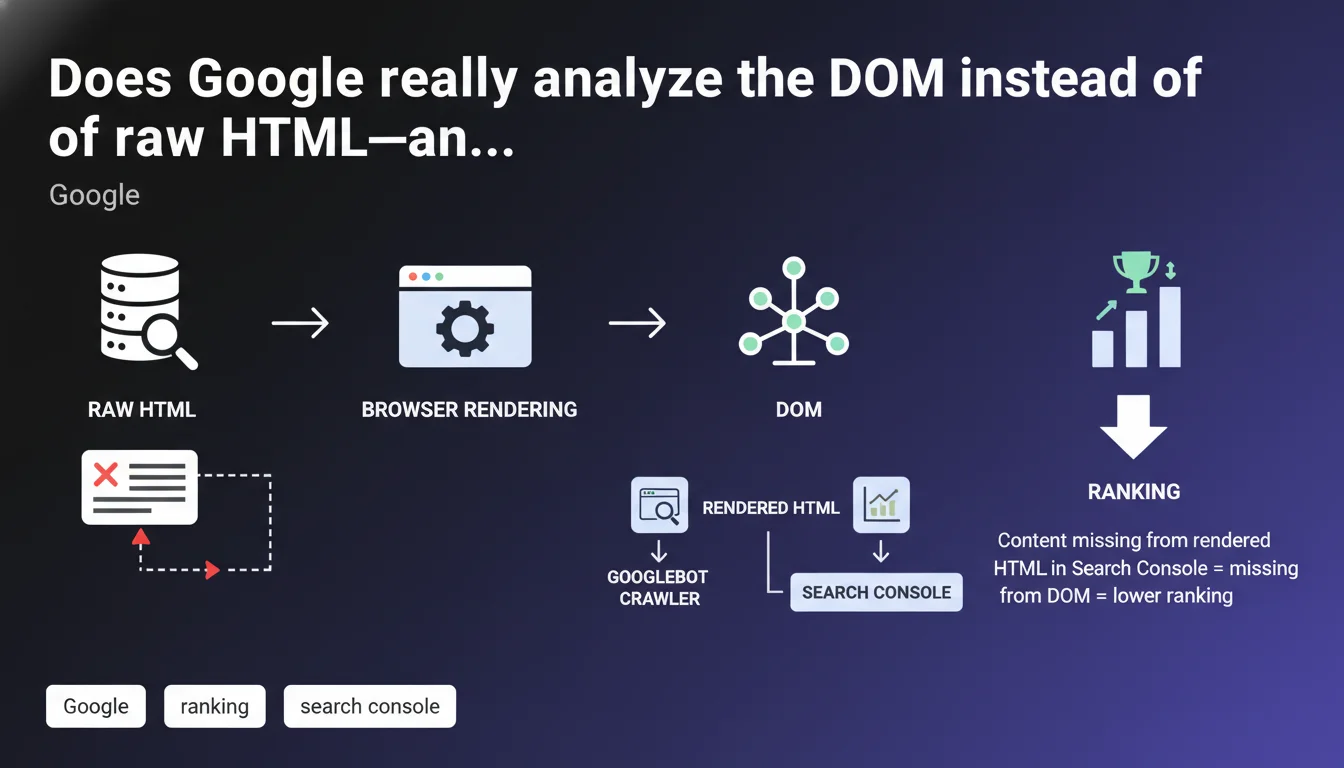
Google confirms that the Elements tab in Chrome DevTools allows you to verify whether content is actually present in the DOM after JavaScript rendering. If an element is missing from the rendered HTML in Search Console, it will also be absent from the DOM that Googlebot analyzes. This statement reinforces that JavaScript rendering remains a critical step for indexation.
What you need to understand
What's the difference between raw HTML and the DOM?
The raw HTML is the initial code sent by the server — what you see when you "View Page Source" in your browser. The DOM (Document Object Model) is the finalized structure after the browser executes JavaScript, applies CSS, and builds the element tree.
For Google, this distinction is crucial. Googlebot analyzes the DOM once JavaScript rendering is complete. If your content only appears after complex or asynchronous JavaScript manipulation, it must be visible in the final DOM — otherwise, Googlebot won't see it.
Why does Google emphasize the Elements tab?
The Elements tab in Chrome DevTools (or the Firefox/Safari equivalent) shows exactly what the browser built after rendering. It's your best diagnostic tool for missing content: if you can't find it there, Google won't find it either.
The "Inspect URL" tool in Search Console simulates this rendering. When the rendered HTML displayed in Search Console doesn't contain your content, it signals that JavaScript failed, executed too late, or that the content is blocked by robots.txt or a CSP rule.
What does this statement imply for JavaScript-heavy websites?
Frameworks like React, Vue, or Angular often generate nearly empty raw HTML — all content is injected via client-side JavaScript. Google claims to handle this without issues, but real-world evidence shows that JavaScript rendering remains a major bottleneck.
If your critical content — headlines, paragraphs, internal links — only appears late in the rendering cycle or depends on asynchronous conditions (fetch API, misconfigured lazy loading), you risk partial or zero indexation.
- The final DOM is what Googlebot indexes, not the raw source code
- The Elements tab allows you to verify actual content presence after rendering
- Search Console "rendered HTML" simulates what Googlebot sees after JavaScript execution
- If content is missing from the rendered HTML in Search Console, it will also be missing from the analyzed DOM
- JavaScript-heavy sites must verify that critical content is properly present in the final DOM
SEO Expert opinion
Does this statement bring anything new to the table?
No. It's a reminder of JavaScript rendering fundamentals that every SEO practitioner has known since 2015. Google is explicitly telling us to check the DOM — something we already do daily through Search Console URL inspection or DevTools.
What's critically missing here is clarification on acceptable rendering delays. How long does Googlebot wait before considering rendering complete? Five seconds? Ten? And if content appears after infinite scroll or a user click, is it indexed? [Unverified] — Google remains vague on these precise thresholds.
What nuances should we add?
The DOM displayed in the Elements tab can differ slightly from the one Googlebot constructs. Why? Because Googlebot uses a version of Chromium that may be several versions behind your local browser. Some modern JavaScript APIs may not be supported.
Additionally, the Elements tab shows a "frozen" state at one specific moment. If your content appears after 15 seconds via progressive lazy loading, you'll see it in your browser but potentially not in the snapshot Googlebot captures. Let's be honest: testing only with DevTools isn't enough — you must cross-reference with Search Console's "Inspect URL" feature.
When doesn't this rule apply?
This statement assumes JavaScript executes properly. But what about blocking JavaScript errors? If a critical script crashes before content injection, the DOM remains empty — and Google won't always flag the error clearly in Search Console.
Server-side rendered content (SSR, SSG) makes this problem almost irrelevant. With Next.js in SSR or Gatsby in SSG, the raw HTML already contains the final content — no client-side JavaScript dependency. The DOM and raw HTML are nearly identical, eliminating any indexation incompleteness risk.
Practical impact and recommendations
How do I verify that my content is properly present in the DOM?
Open the Elements tab in Chrome DevTools (F12) then use the shortcut Ctrl+F (or Cmd+F on Mac) to search for a unique text snippet from your page. If you find it in the DOM but not in the raw source code ("View Page Source"), that means JavaScript injected it.
Next, go to Search Console > URL Inspection > enter the URL in question > click "Test live URL" > check "View tested page" then "Rendered HTML". Search for your content there. If it's missing, Googlebot doesn't see it.
What mistakes must I absolutely avoid?
Never rely on content injected after user interaction (clicking a button, infinite scroll without HTML fallback). Googlebot doesn't click, doesn't scroll — it captures the DOM at the initial state after automatic JavaScript execution.
Avoid dependencies on slow or unstable third-party APIs. If your content waits for a fetch() response that takes 8 seconds, Googlebot risks capturing an empty DOM. Prioritize server-side rendering for critical content or use pre-populated HTML placeholders.
- Verify content presence in the Elements tab of DevTools (Ctrl+F)
- Compare raw source code and DOM: if content is missing from the raw code, test JavaScript rendering
- Use Search Console "URL Inspection" > "Test live URL" > "Rendered HTML"
- Ensure critical titles, paragraphs, and internal links are present without user interaction
- Avoid late JavaScript injections or injections dependent on user events (scroll, click)
- Favor SSR/SSG for critical content rather than pure client-side rendering
- Monitor JavaScript errors in Search Console ("Coverage" tab > "Crawl errors")
❓ Frequently Asked Questions
Si mon contenu est visible dans le navigateur mais absent du HTML rendu Search Console, que se passe-t-il ?
L'onglet Elements affiche-t-il exactement ce que Googlebot voit ?
Est-ce que le contenu injecté en lazy loading après scroll est indexé par Google ?
Le SSR (Server-Side Rendering) résout-il définitivement ce problème ?
Combien de temps Googlebot attend-il pour que le JavaScript se termine ?
🎥 From the same video 7
Other SEO insights extracted from this same Google Search Central video · published on 07/02/2023
🎥 Watch the full video on YouTube →
💬 Comments (0)
Be the first to comment.