
Official statement
Other statements from this video 7 ▾
- □ Are JavaScript frameworks silently creating soft 404 errors on your high-inventory site?
- □ Is robots.txt silently blocking your critical resources without you knowing?
- □ Is Google's robots.txt version history the game-changer your SEO audits have been waiting for?
- □ Can hosting robots.txt across multiple CDNs silently sabotage your crawl budget?
- □ Can a single failed AJAX request destroy the indexability of your entire page?
- □ Does poor JavaScript error handling really tank your Google rankings?
- □ Does manually resubmitting corrected URLs in Search Console really speed up reindexing?
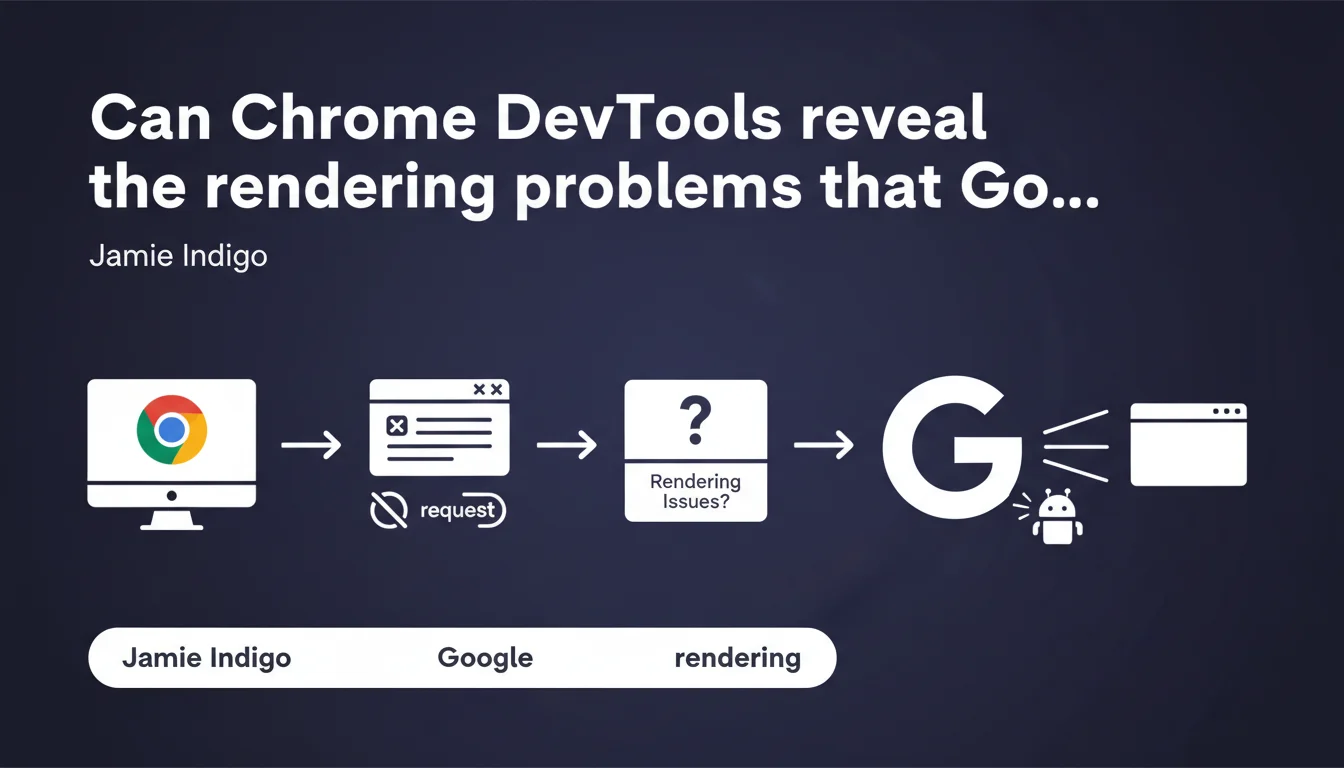
Chrome DevTools' Network tab allows you to selectively block requests to reproduce exactly what Googlebot sees during crawl. Concretely, you can identify which scripts, CSS, or third-party resources prevent your content from rendering properly on Google's side.
What you need to understand
Why does Googlebot encounter rendering issues that we don't see?
Googlebot doesn't always load pages like your browser does. Some resources may be blocked by robots.txt, others fail during crawl due to timeouts or rendering budget limitations. The result? Pages that display perfectly for you but appear empty or incomplete to Google.
Chrome DevTools' Network tab becomes a diagnostic tool. By manually blocking specific requests — a JavaScript file, a stylesheet, a web font — you reproduce the exact conditions of an incomplete crawl. You see what Googlebot actually sees.
Which resources are typically problematic?
The usual culprits: third-party scripts (analytics, advertising, chatbots), critical CSS loaded asynchronously, web fonts hosted on external CDNs. If Googlebot can't load critical CSS, your content may technically be present in the DOM but visually invisible — and therefore not indexable.
Modern JavaScript frameworks (React, Vue, Angular) also pose challenges. If client-side rendering depends on a resource that Googlebot doesn't load, the content will never appear. Hence the importance of testing with selective blocking to identify critical dependencies.
How do you practically use the Network tab to diagnose?
Open Chrome DevTools, go to the Network tab, right-click on a specific request, and select "Block request URL" or "Block request domain". Reload the page. You immediately see the impact of the block on rendering.
Then compare with the URL inspection tool in Search Console. If content is missing in Google's capture but displays when you unblock a specific resource in DevTools, you've found the problem. This is surgical diagnosis.
- Selectively block requests to reproduce Googlebot's crawl conditions
- Identify critical resources on which your main content rendering depends
- Verify that your essential CSS and JS are not blocked by robots.txt
- Test the impact of third-party scripts on indexable content display
- Systematically compare with Google's cached view and the URL inspection tool
SEO Expert opinion
Does this method really replace Google's official tools?
No, and that's where it gets tricky. Chrome DevTools gives you an approximate preview of what Googlebot might see, but it's not Googlebot. Google's rendering engine has its own peculiarities: Chrome versions sometimes behind, different timeouts, specific handling of blocked resources.
The URL inspection tool remains the absolute reference. DevTools is useful for forming hypotheses before verifying in Search Console. But never rely solely on DevTools to validate that a page is correctly rendered on Google's side.
What are the pitfalls to avoid with this technique?
The main pitfall: blocking a resource doesn't simulate an exact load failure. Blocking a script in DevTools produces a clean error, whereas in real crawl conditions, Googlebot might experience a partial timeout, load an outdated cached version, or simply ignore the resource without visible error.
Another limitation: this method only tests initial rendering. If your content loads via user interactions (infinite scroll, poorly implemented lazy loading), DevTools won't tell you if Googlebot can trigger these interactions. [To verify]: Google claims to handle modern lazy loading, but field observations show mixed results depending on implementation.
In which cases is this approach truly effective?
This technique shines in complex debugging situations where you suspect a specific resource is disrupting rendering. For example, an e-commerce client whose prices don't appear in search results because they're loaded by a blocked third-party script.
Let's be honest: for simple sites with classic server-side rendering, DevTools is unnecessary. But for modern JavaScript applications, sites with many third-party scripts, or e-commerce platforms with complex architectures, it's a valuable diagnostic tool — provided you cross-reference results with Search Console.
Practical impact and recommendations
What do you need to do concretely to audit your pages' rendering?
Start by identifying your strategic pages: high-traffic product pages, conversion landing pages, key editorial content. Open each in Chrome DevTools, Network tab, and test blocking suspicious resources.
Systematically block: analytics scripts, advertisements, chatbots, external fonts, non-critical CSS. Reload after each block and note whether main content remains visible. If a block makes indexable text disappear, you have a problem.
Next, cross-reference with Search Console. Use the URL inspection tool to see Google's rendering capture. If elements are missing in the capture but display in DevTools (even with blocks), the problem lies elsewhere — timeout, crawl budget, or Google's rendering engine limitation itself.
Which errors to avoid during this diagnosis?
Don't block everything at once. Proceed resource by resource to precisely isolate what's problematic. Blocking ten scripts simultaneously won't tell you which one is critical.
Avoid testing only locally or on a staging environment. Third-party resources behave differently in production: CDNs with specific cache rules, scripts that load based on geolocation, variable timeouts. Always test on the actual production URL.
Final pitfall: don't limit yourself to desktop. Googlebot now uses mobile-first indexing. Test in responsive mode in DevTools, with simulated 3G connection. Rendering issues are often amplified on mobile.
How do you verify your fixes work?
After identifying and fixing a problematic resource, request a live inspection in Search Console. Wait for Google to recrawl (force indexing if necessary). Verify that missing content now appears in Google's rendering capture.
Also monitor Core Web Vitals. If you've moved critical scripts, inlined CSS, or modified how third-party resources load, the impact on LCP and CLS can be significant — for better or worse.
- Identify strategic pages and test them one by one in the Network tab
- Selectively block suspicious resources (third-party scripts, external CSS, fonts)
- Verify that indexable content remains visible after each block
- Systematically compare with Search Console's URL inspection tool
- Test in mobile mode with simulated slow connection (3G)
- Never block robots.txt without intention: verify server directives in parallel
- Request reindexing after correction and monitor progress in Search Console
- Measure impact on Core Web Vitals after modifying resource loading
❓ Frequently Asked Questions
Est-ce que bloquer une ressource dans DevTools simule exactement ce que voit Googlebot ?
Dois-je tester uniquement les scripts JavaScript ou aussi les CSS ?
Combien de temps après une correction Google recrawle-t-il la page ?
Cette technique fonctionne-t-elle pour diagnostiquer les problèmes d'Interaction to Next Paint (INP) ?
Faut-il bloquer les ressources analytics et publicité par défaut ?
🎥 From the same video 7
Other SEO insights extracted from this same Google Search Central video · published on 02/03/2023
🎥 Watch the full video on YouTube →
💬 Comments (0)
Be the first to comment.