
Official statement
Other statements from this video 4 ▾
- □ How can you truly leverage Google Search Console's Performance Report to drive your organic visibility?
- □ How can you unlock hidden traffic from high-impression pages in Google Search Console?
- □ Why isn't Google showing your updated content in search results—and how do you fix it?
- □ How can you unlock hidden SEO insights by exporting Search Console data to other analytics platforms?
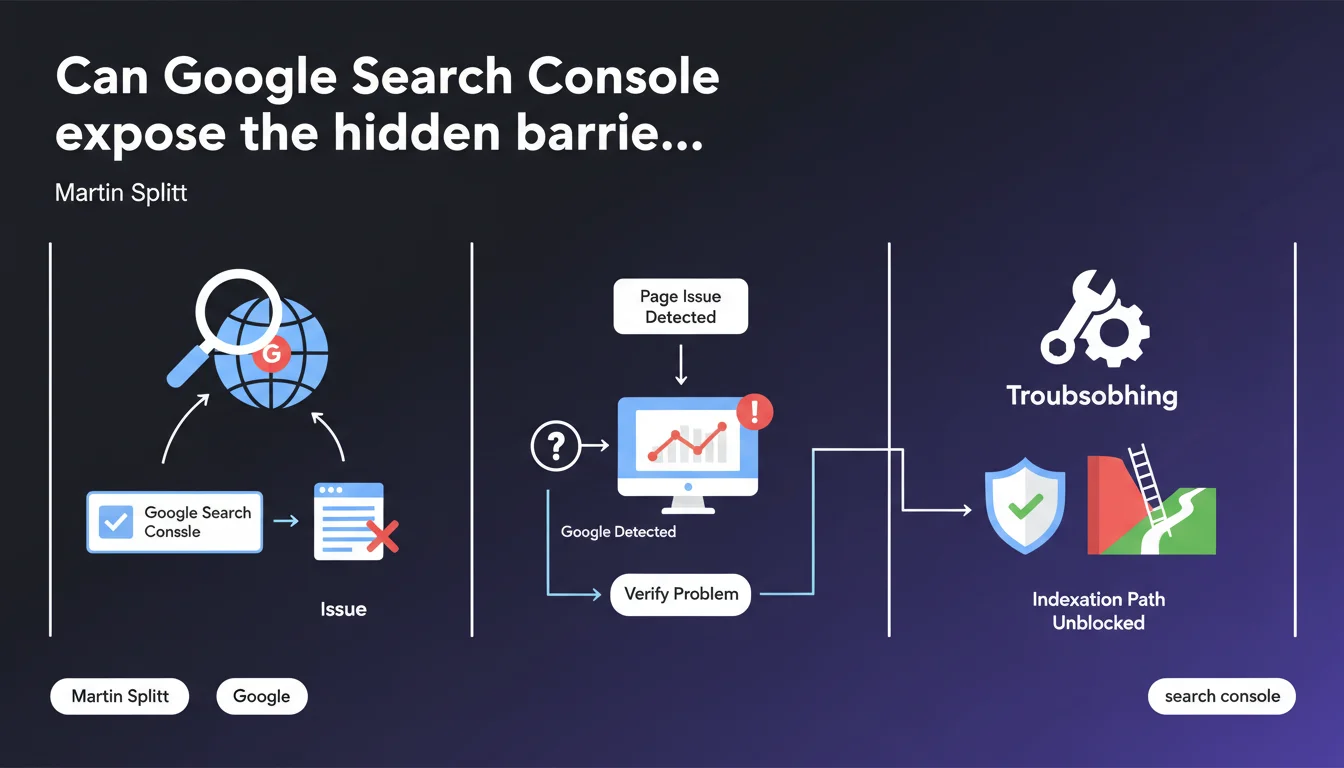
Martin Splitt emphasizes that Google Search Console precisely identifies the technical issues preventing your pages from appearing in search results. The tool provides a detailed view of what Googlebot actually detected, transforming indexation problem diagnosis from guesswork into concrete troubleshooting. For practitioners, it's a clear signal: stop speculating and start analyzing the raw data reported by the console.
What you need to understand
What does Search Console actually detect as a "blocking issue"?
Search Console flags the technical obstacles that prevent a URL from being indexed or displayed in SERPs. This includes server errors (5xx), robots.txt blocks, noindex tags, broken redirects, or JavaScript rendering problems.
The tool doesn't just offer binary diagnostics "it works / it doesn't work". It reveals what Googlebot actually saw during its crawl: HTTP codes returned, HTML content retrieved, blocked resources. This transparency lets you understand why a page stays invisible, not just observe that it is.
How does this feature change SEO diagnostics?
Before Search Console, indexation troubleshooting felt like poker: you gambled on hypotheses without seeing Google's cards. Now the tool shows you exactly what the bot crawled, what it understood, and where it stumbled.
This visibility drastically cuts the time spent testing fixes blindly. You know whether the problem stems from a misconfigured HTTP header, broken JavaScript, or a misplaced meta tag. Let's be honest: it's still imperfect — some complex rendering issues or multi-layer redirects aren't always well reported — but it's infinitely better than working without a net.
Why is Google pushing this tool now?
Because modern websites have become technical behemoths: JavaScript frameworks, multiple CDNs, authentication, conditional redirects. The causes of non-indexation have multiplied and grown more complex.
Google promotes Search Console as the mandatory entry point for diagnostics because it also standardizes communication with webmasters. Rather than receiving vague support tickets like "my site doesn't appear", they prefer you arriving with precise data from the console. It saves everyone time.
- Search Console exposes blocking technical errors detected by Googlebot during crawl
- The tool shows the actual content retrieved by the bot, not what you see in your browser
- This transforms indexation diagnosis into a factual rather than speculative process
- Google thereby standardizes issue reporting and facilitates technical support
- Some edge cases (complex JavaScript rendering, cascading redirects) remain imperfectly detected
SEO Expert opinion
Is this statement consistent with real-world observations?
Yes, in the vast majority of cases. Search Console does report critical indexation issues: 404/500 errors, robots.txt blocks, noindex, misconfigured canonicals. On these points, the tool is reliable and accurate.
Where it gets tricky: sites with heavy JavaScript rendering. Search Console may report "page approved" when in reality main content doesn't display correctly after rendering. Conversely, some resource blocking issues (CSS, JS) are flagged as critical when they don't actually impact indexation. [To verify] on your own URLs via the inspection tool, especially if your site uses React, Vue, or Angular.
What nuances should be added to this claim?
Search Console only detects what Googlebot attempted to crawl. If a page is never crawled (due to lacking internal links, for example), it won't appear anywhere in the console. You won't even know it exists for Google.
Another point: the tool reports technical issues, not qualitative reasons why Google might choose not to display your page. If your content is duplicated, thin, or deemed irrelevant, Search Console will say "indexed, but not visible in results" with no further details. This is where diagnosis becomes more nuanced and requires in-depth manual analysis.
In what cases is this tool insufficient?
When the problem isn't a binary technical block. Typically: a page indexed but never ranking, even on branded queries. Search Console will say "all good", but you see zero traffic.
Another limitation: crawl budget issues. If Google crawls your site too slowly, some pages will take weeks to be discovered. Search Console won't really alert you to this — you'll need to analyze server logs in parallel to detect this type of bottleneck.
Practical impact and recommendations
What should you do concretely today?
First step: open Search Console and check the index coverage report. Identify all URLs marked as "Excluded" or "Error". Don't just glance — export the data and sort by error type.
Next, for each problematic URL, use the URL inspection tool. Click "Test live URL" to see what Googlebot retrieves in real-time. Compare with what you see in your browser. If content differs, you have a rendering issue to fix as priority.
What mistakes should you avoid when using Search Console?
Classic mistake: fix a problem and wait for Search Console to update automatically. It can take days or weeks. Once your fix is live, request manual validation via the provided button. Google will re-crawl the affected URLs within a few days.
Another trap: ignoring "soft" warnings. For instance, a soft 404 page (status 200 returning empty content or an error) will be flagged but not immediately blocked. Don't let these alerts slide — they often escalate to hard errors and you lose indexation without notice.
How do you verify your site is truly compliant?
Set up regular monitoring of Search Console reports. Ideally, configure email alerts to be notified immediately when errors spike. A site working today can break tomorrow after a server update or CMS change.
Cross-reference Search Console data with your server logs. If a URL is marked "crawled but not indexed" in the console, check logs to see if Googlebot visits it regularly. If yes, the issue is likely content-related (duplication, low quality). If no, it's a crawl budget or internal linking problem.
- Check the coverage report and export URLs with errors
- Use the inspection tool to compare Googlebot rendering vs browser
- Request manual validation after each fix
- Set up email alerts for error spikes
- Cross-reference Search Console data with server logs
- Don't ignore "soft" warnings (soft 404s, temporary redirects)
- Regularly audit "crawled but not indexed" pages
❓ Frequently Asked Questions
Search Console détecte-t-elle tous les problèmes d'indexation ?
Combien de temps après un correctif Search Console se met-elle à jour ?
Que faire si une page est marquée « explorée mais non indexée » ?
Search Console remonte-t-elle les problèmes de rendu JavaScript ?
Faut-il corriger tous les avertissements remontés par Search Console ?
🎥 From the same video 4
Other SEO insights extracted from this same Google Search Central video · published on 09/11/2023
🎥 Watch the full video on YouTube →
💬 Comments (0)
Be the first to comment.